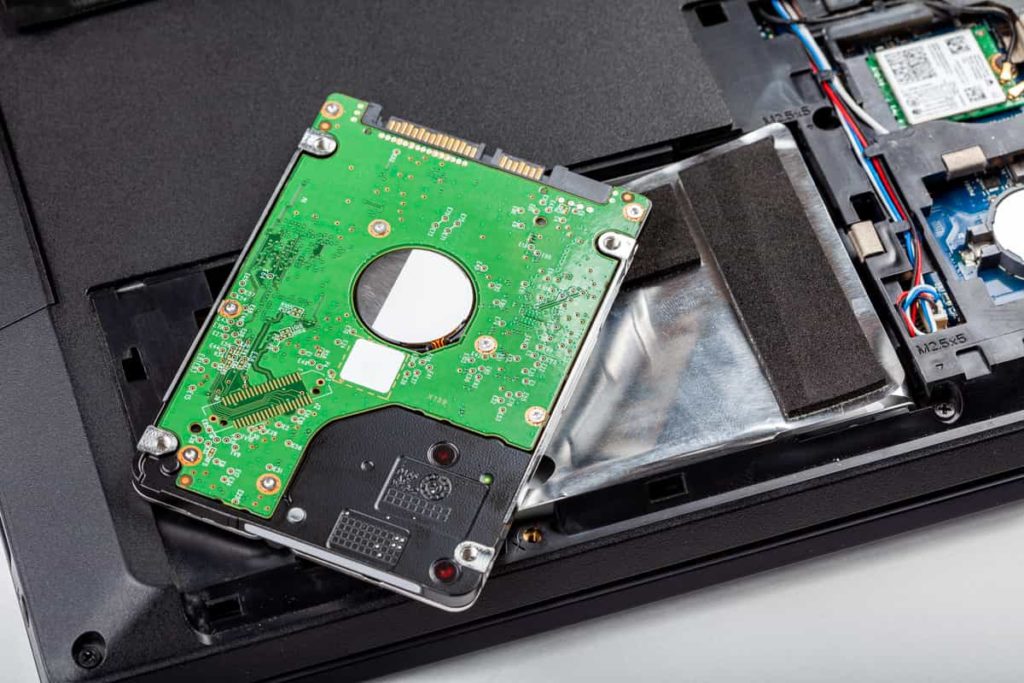
SSD drives (Solid State Drives) are known for their speed, reliability and lifespan. However, like any electronic equipment, they can also experience problems and cause the loss of important data. In this article, we will cover five signs of SSD failure, how to check for them and how to prevent these issues to avoid data loss.
5 signs of SSD failure
First, it is essential to learn to recognise the symptoms of an imminent failure so that you can act immediately and protect your information before it is lost for good. Here are a few warning signs:
- Slower operating speed: one of the first signs that your SSD is having problems is a noticeable decrease in data processing and storage speed. If you notice that your computer is taking longer than usual to boot, open files or carry out everyday tasks, this could be a sign of a problem with your SSD.
- Frequent system errors: system errors (such as blue screens, sudden crashes or unexpected restarts) are also possible indicators of problems with your SSD drive.
- Corrupted or missing files: if you constantly find unreadable, corrupted or missing files on your computer for no apparent reason, this may also indicate a problem with your SSD drive.
- Strange noises: although SSD drives are much quieter than traditional hard disk drives (HDDs), they can still emit sounds in the event of failure. A constant humming or intermittent clicking are advanced signs of problems with your SSD.
- Drive recognition problems: if your operating system struggles to recognise the drive or if the BIOS does not detect it, this may also signal a failure of your storage device.
How to check the health of your SSD ?
In order to prevent data loss and avoid high recovery costs, it is important to regularly check the health of your SSD. Here are a few steps to carry out this check:
- Use diagnostic software: several free and paid programs are available to monitor the health of your SSDs. They generally allow you to check various parameters such as NAND memory wear, errors detected by the controller or firmware, and data transfer speed. A comprehensive and free program such as Smart Disk Checker will let you check the health of your SSD.
- Check the SMART indicators: SSD drives are equipped with SMART (Self-Monitoring, Analysis and Reporting Technology), which identifies and reports potential problems before they affect the drive’s operation. Most of the diagnostic programs mentioned above also offer the option of viewing SMART data to assess the health of your SSD.
- Run a performance test: another way to check the state of your SSD is to run a performance test to measure its read and write speed. Many free and paid programs can run these tests and provide detailed results on your drive’s performance.
How to prevent SSD failures
As prevention is always better than cure, here are a few actions to take to avoid SSD failures:
- Keep your system up to date: make sure you regularly install updates for your operating system, as well as firmware and drivers for your hardware. These updates may include important fixes for compatibility and security issues.
- Monitor the temperature: SSD drives are sensitive to heat. It is important to ensure good ventilation for your system and regularly check internal temperatures to avoid overheating and the damage that results from it.
- Avoid power surges: surge protection can help prevent electrical damage to the internal components of your SSD. Investing in a protective device such as a surge-protected power strip is a simple and effective way to protect your hardware.
- Set up regular backups: having a regular backup plan reduces the risk of data loss in the event of an SSD or other system component failure. Remember to back up your important files to another storage medium or to a secure online storage service.
- Check the state of the SSD with the tools mentioned above: regularly using diagnostic software to check the health, performance and SMART indicators of your SSD will allow you to quickly identify any potential problem and take corrective action promptly.
Data recovery following a malfunction must always be carried out by a professional. However, to limit costs, it is best to call on a data recovery specialist as soon as one of the five signs listed above appears. Do not wait any longer if you have the slightest doubt. Have the health of your SSD checked and carry out regular backups to avoid any irreversible data loss.