Top 20 data recovery software tools
The best data recovery software, free or paid?
Is your computer experiencing a fault? Looking for tools to recover your data? Discover the ranking of the best data recovery software from Chronodisk. Depending on your needs and the level of damage, you can turn to free and/or paid solutions.
Good news: a disruption to your media’s logical structure doesn’t damage it to the point of being unusable. If it still works, there are plenty of tricks to recover your data for free by yourself. Often, all you need is an open source or freemium data recovery program. This type of software is fairly effective for minor logical or software faults.
When the fault is more serious, only paid data recovery software is capable of saving the day. Even so, be careful to set the parameters correctly – a silly mistake can prove fatal.
If the source of your trouble is a hard drive with a physical fault (mechanical or electronic), don’t play amateur repair technician – it will generally need to be brought to our laboratory’s cleanroom.
Chronodisk brings you the complete list of the best-performing free and paid data recovery software. Free software costs you nothing, while paid data recovery solutions range in cost from €45 to €300.
First of all, know that free software is perfectly capable of helping you with minor faults. On the other hand, the result can be fairly random: some folders go missing or the folder structure gets disorganised, leaving you up all night renaming every file to reorganise your documents.

For their part, paid data recovery programs require good technical knowledge, since setting them up can be fairly laborious. Good to know: price doesn’t determine quality – the most expensive software isn’t always the most effective. Your choice should instead be guided by your specific problem, since each program has its own particularities and is designed for a very specific type of non-hardware fault.
Depending on the situation, you may end up testing dozens of combinations. Except that between each combination, you need to scan the hard drive for several hours. Depending on the software chosen, file processing speed ranges from 1 to 5. Despite your attempts, you still can’t recover your data? Turn to a company that specialises in data recovery, like Chronodisk, for help. Want to go it alone? Roll up your sleeves, take a deep breath… Here we go!

The golden rules of data recovery
Before getting started, read these principles to avoid pitfalls and costly mistakes, and/or refer to our guide :
- Do not install software onto the system drive that already holds your data. Your software must sit on a different partition, or you risk overwriting part of the data you’re trying to recover;
- Do not change the structure, size, or format of your partition. Switching from a Mac (HFS+) or PC (NTFS) format to Linux (EXT4), for example, would destroy all your data;
- Do not save your new data directly onto the partition that holds your lost data. Doing so permanently overwrites the old data;
- If your drive is showing a SMART error, do not use data recovery software. This would worsen the fault and create new bad sectors.

Can data recovery software make a fault worse?
Sometimes, yes! A good program, even used correctly, can – depending on the cause of the fault – make data recovery more difficult, or even impossible. Here is a non-exhaustive list of situations where you should not scan your hard drive for several hours:
- The hard drive is making a suspicious noise;
- The drive is only detected about half the time;
- The drive is slow;
- The drive is heating up abnormally;
- Windows or Mac OS freezes and randomly crashes with a blue screen.
How do you know if the SMART function is reporting a hard drive error? Enable it in your computer’s BIOS or use a shareware tool such as Active SMART. Note that the SMART function is not effective on external USB hard drives. To use it, you’ll need to connect your hard drive via an internal IDE or SATA cable inside the computer.
Running a hard drive for several hours through data recovery software is likely to cause a mechanical fault and deep scratches on the internal platters.
Is your hard drive not detected in the BIOS or the computer’s device manager? Is it clicking and getting slower and slower? Data recovery software won’t be your miracle solution. The only option is to hand your drive over to a specialist company that will treat it in a cleanroom. The cost of the operation ranges from several hundred to several thousand euros if your RAID system spans several drives.
Afraid of losing your data?
Not getting the result you expected from your data recovery software? Is the folder structure incomplete? Are folders missing and files scattered with garbled names? Are the files corrupted? Turn to a data recovery lab – its results will always be more reliable than those of recovery software. That’s only natural – it’s what we do! Keep this in mind when, for example, your important data is deleted and then overwritten because of an operating system reinstall (Windows, Mac or Linux).
FREE data recovery software
When your budget doesn’t allow for paid software – generally more powerful and more thorough to configure for your logical/software fault – here is a selection of free programs that will help if you’ve deleted or lost files. In almost every case, you can consider yourself satisfied with the result when the files are over 99% functional, and their names and original location within their folder are also fully intact. If not, switch software and try scanning your hard drive – or just the relevant partition – again.
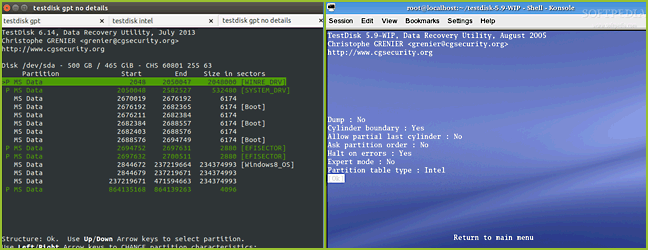
TestDisk
TestDisk is one of the most powerful “open source” programs for handling and resolving certain very specific partition issues. It’s a utility that can also prove dangerous to a partition if configured inconsistently. It’s particularly effective for restoring lost partitions, though it isn’t strictly speaking a data recovery program. TestDisk only runs from the DOS command line (no graphical interface), which can put some users off.
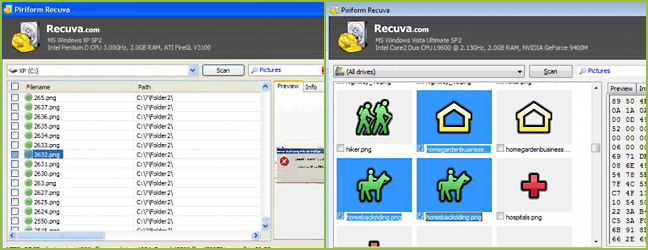
Recuva
Made by the creators of the popular CCleaner, this free program recovers files accidentally deleted from the computer. It supports files permanently deleted from the recycle bin, as well as images and any other file type, including files erased from a digital camera’s memory card or an MP3 player. It can even restore files removed by viruses or major faults.
See our tutorial dedicated to Recuva
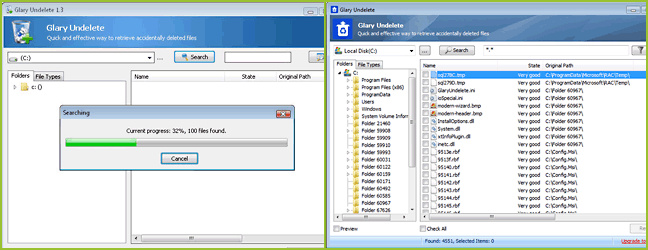
Glary Undelete
Powerful, easy to use and completely free, this utility can recover files deleted from the recycle bin, from a DOS window and from Windows Explorer. It can also restore files wiped out by viruses as well as major faults. Running on Windows 95/98/Me/XP/2003 and Vista, it supports all file types from Windows systems, whether from a hard drive or a floppy disk drive.
Disk Drill
Well known on Mac, Disk Drill is also available on Windows. It can recover data from devices connected to your computer: USB key, memory card, camera, and so on. Disk Drill’s major strength is how easy it is to use. It’s available in free and paid versions (up to 500MB for the free version). It can also do plenty of other things, such as creating a volume image, file protection (Recovery Vault), and partition recovery.

EaseUS Data Recovery Wizard
EaseUS Data Recovery Wizard Free is a utility that lets you recover files lost from a hard drive, USB key or memory card, as well as smartphones, cameras, music players and other storage media, following a deletion, a format, a software crash, a virus or a lost partition. A few clicks are all it takes to get back what was lost. It’s an easy-to-use program aimed at all users, regardless of their level of expertise. It’s available in free and paid versions for professionals.
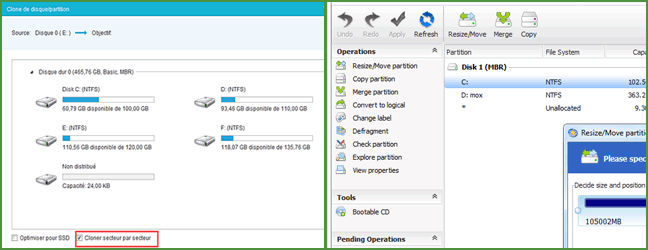
ADRC Data Recovery Software Tools
This utility packs a range of features letting users recover lost data across many kinds of drives and systems. With one of the simplest interfaces to understand, it’s designed to suit every type of user. Giving users maximum control, it can create a hard drive image and copy files from damaged drives. It can also clone the drive and let the user restore and review their drive’s original settings. On top of that, it’s easy to install and small in size.
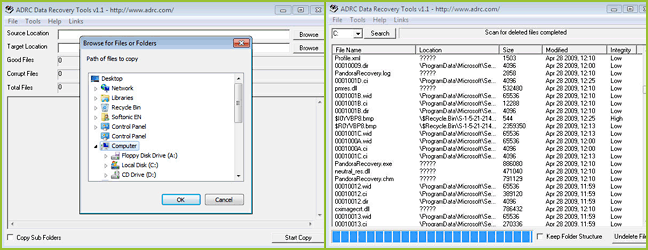
FreeUndelete
This software is a program that recovers data lost when files are deleted. If data has accidentally been deleted from an NTFS file (the Windows NT, 2000 and XP default), or from a FAT16 or FAT32 file, this very easy-to-use utility is just the thing!
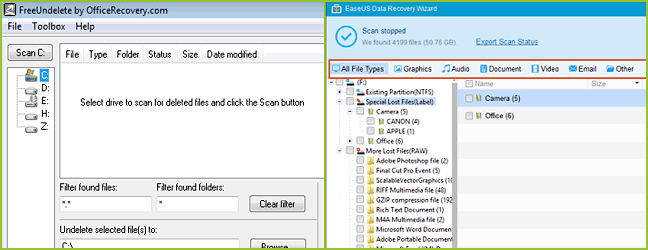
Panda Recovery
This software recovers files permanently deleted from the recycle bin, files deleted using shift+delete (which bypasses the recycle bin), as well as files deleted from DOS. It also supports every file type, from images to films to simple documents.
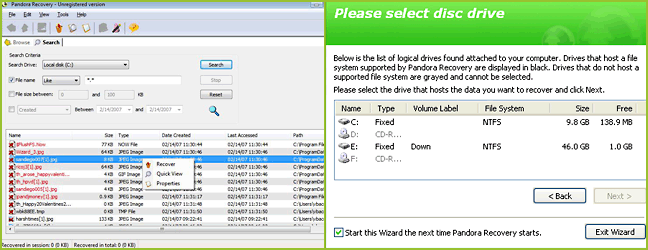
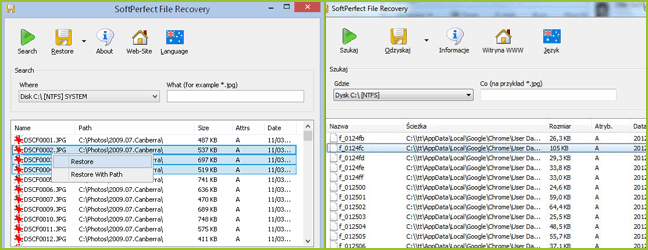
SoftPerfect File Recovery
Completely free and very practical, this utility restores files accidentally deleted from floppy disk drives, hard drives, USB devices, SD and CF cards, or any other data storage media. It can recover most file types, even compressed and encrypted ones. It’s very easy to use and requires no installation.
Undelete Plus
Undelete Plus is a fairly effective and fast way to recover and restore files deleted by mistake. It can also recover files erased from the recycle bin or permanently removed using Windows’ shift+delete function. It runs on Windows operating systems (95/98/NT/2000/XP/2003/Vista) and supports all Windows file types, on a hard drive or floppy disk drive, and even images from CompactFlash, MultiMedia, SmartMedia and secure digital cards. It requires no installation and is portable.

Paid data recovery software
This software isn’t free, but offers good effectiveness and, generally, good support from the manufacturer. In fact, we’d suggest taking no chances if you’ve lost truly important files. Even though they aren’t free, these high-performance programs give you the best chance of recovering documents that may be priceless.
Hexascan
OUR PICK – Developed by French experts, Hexascan is one of the best programs out there. It’s paid, certainly, but it gets better results than other tools in many situations. It’s also the only one that handles more than 15 file systems and, importantly, offers support in French. A must-have for IT professionals. Bonus: they even have the Pumacloner tool for recovering hard drives with bad sectors or drives poorly detected by the system.

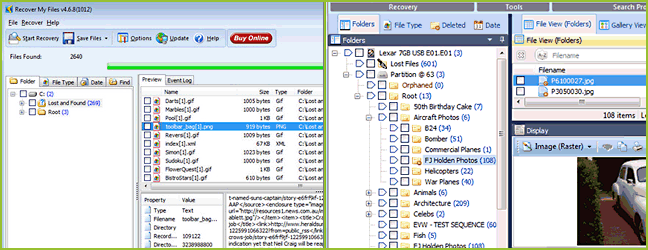
Recover My Files
Recover My Files by Get Data is designed to help you recover files permanently deleted from the recycle bin, as well as those lost following an unexpected format or corruption caused by a virus, an infection, a fault or an unexpected computer shutdown – all quickly and easily.
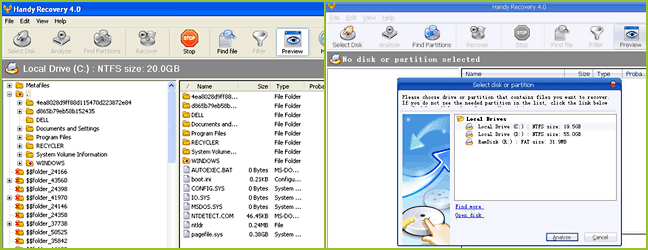
Handy Recovery
SoftLogica innovates with its Handy Recovery product. This utility, ranking among the best in its category, offers users several quality features that help it stand out from the competition.
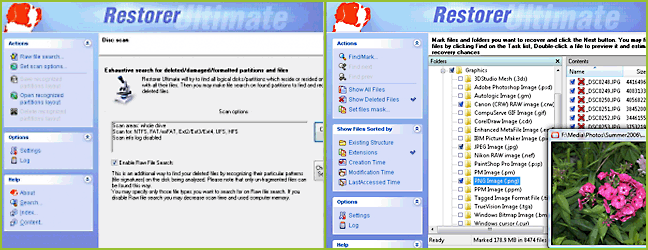
BitMart Restorer2000
Bitmart’s Restorer2000 Data Recovery utility is without a doubt one of the most effective data recovery products on the market. Offering excellent value for money, it’s ideal for restoring or recovering files deleted by mistake or removed from the computer’s hard drive.
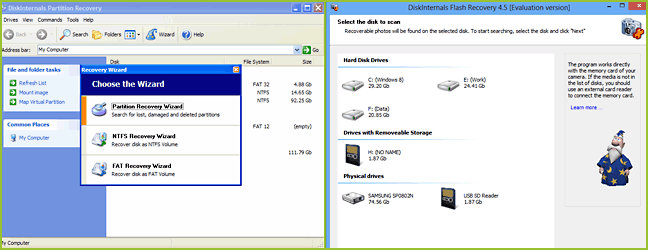
DiskInternals Recovery
Two versions of the software are available, one for PC and one for Mac. It comes with a bootable CD, letting you run the application without installing it on the hard drive. There’s nothing simpler for attempting to recover your deleted or lost data – very little configuration is needed, and the operations are fully automated.
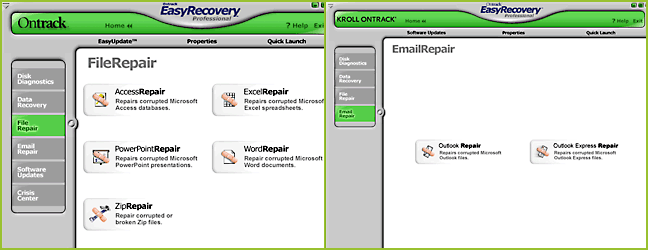
OnTrack EasyRecovery
Ontrack is one of the longest-established specialists in data recovery. Several versions of the software are available. The full versions are fairly expensive. Whichever version of the software you use, configuration is extremely difficult to get right in order to get the best out of the tools on offer.
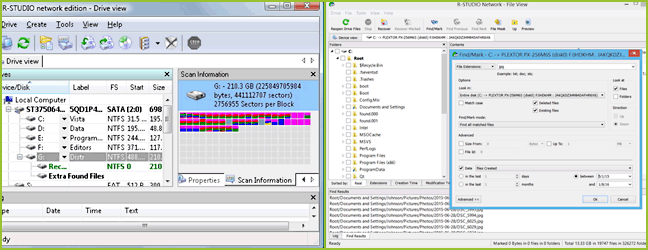
R-Studio 8
Supports Windows, but also Linux (Ext2FS), Unix (UFS) and Mac (HFS, HFS+ and the brand-new AFS format). Less easy to use than other popular programs, but good help is available and it’s very effective.
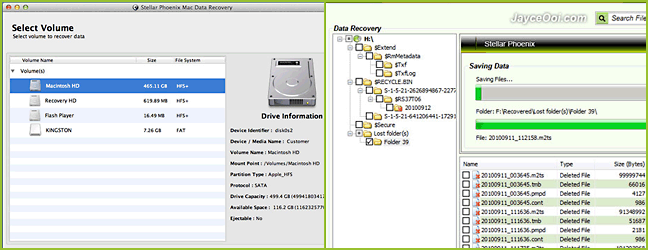
Stellar Phoenix
Supports FAT16, FAT32, FAT, NTFS, HFS and HFS+ file systems – effective, easy-to-use software, though you need to buy a separate program for each format type, which can get very expensive if you have several different partitions.
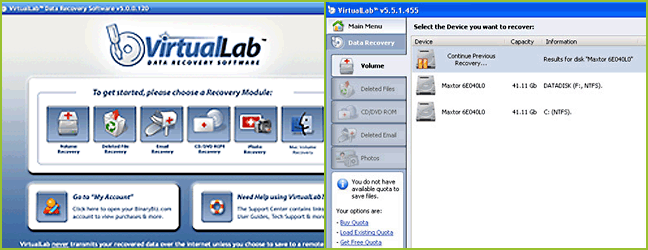
VirtualLab Data Recovery
Supports all versions of Windows. A complete solution, though it can get expensive depending on the version chosen.
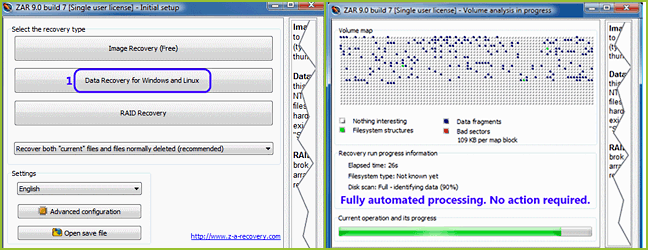
Zar
Without doubt one of the most powerful data recovery programs on the market, particularly for RAID systems. But the user interface is not very friendly. Supports all versions of Windows and offers limited support for Linux. The software is fully automated, but configuration is also among the most complex – experts only, please. Results are sometimes surprising, but scans are particularly long, since the software runs several successive levels of analysis. This is the tinkerer’s software of choice – expect sleepless nights optimising your data recovery…