
Make Sure You’re Well Informed Before Attempting to Recover Data Yourself
The first precaution to take is, of course, not to make the situation worse ;-). A hard drive is fragile, especially if one of its components is no longer in perfect condition. Any careless handling or inappropriate treatment could complicate the work of recovering the data. Opening and closing the computer or installing new software could have the exact opposite effect to the one intended and reduce the chances of recovering your data intact. THE ultimate piece of advice, and not the least important one: never open a hard drive in open air ! ! !
Second warning: computer shops are not always the best option for data recovery.
If you drop off your faulty hard drive at the shop where you bought it, hoping it will come back to you repaired with all your data intact, you risk severe disappointment. Indeed, a faulty drive is never repaired by the manufacturer — it is always replaced with a new one. If you want to see your data again, only entrust your hard drive to a specialist who focuses exclusively on data recovery. For our part, we offer a free quote as well as free pickup of your device. You can also be assured that you only pay for the data actually recovered at the end of our service. So, if in doubt, don’t hesitate to call on our experts — they are at your service.
Request your free quote in just a few clicks
Can’t manage to recover your data yourself? Are you hesitant to attempt a data recovery because it seems too complex? Are you afraid of causing even more damage and losing everything?
Explore the Resources Available
First of all, it’s important not to give in to panic — sit down and consult several available sources of information. This article will explain what you need to know and will suggest a few relevant links, so that your understanding of the problem and the various possible solutions is complete. You can, right now, visit this blog in English, for example.
A great deal of information about data recovery is available on the Internet. If you’re comfortable with the language of Shakespeare, it is highly recommended to check English-language tech sites. On YouTube as well, videos show a few tips and tricks — not all of which should be taken at face value, but they do have the merit of existing and help you become familiar with this technical environment.
A golden rule: if your hard drive is suffering from a genuine physical failure, or if what you have lost is invaluable to you, we recommend contacting us as soon as possible.
On the other hand, if the data is not very important and you accept the risk of losing it permanently, or if you don’t have a budget for this recovery, you can try it yourself. Always make sure you know what type of failure you’re dealing with.
The Different Types of Failures
There are two main types of failure that can lead to computer data loss: logical (or software) failures and physical failures (mechanical, electronic, or electromechanical). Let’s take a look at these two types of failure.
Mechanical (or Electromechanical) Failures
A mechanical failure, also known as an “electromechanical failure, physical failure, or hardware failure,” occurs when a hard drive stops working correctly due to a shock or hardware fault. Sometimes one of the drive’s components gives out after a while. A hard drive is estimated to have an average lifespan of around 10 years, depending on professional or personal use and the level of usage. But sometimes, manufacturing defects will result in a shorter lifespan, sometimes just a few months. Several parts of the hard drive can be affected: the read head, the magnetic platters, and the motor are the main ones.
The other scenario in which a mechanical failure occurs is when the hard drive suffers a more or less significant impact. A laptop is particularly prone to falls. This is also common with an external hard drive, whose cable connecting it to the computer gets accidentally caught on something. We’ll let you imagine — or relive — what happens next, it’s such a classic…
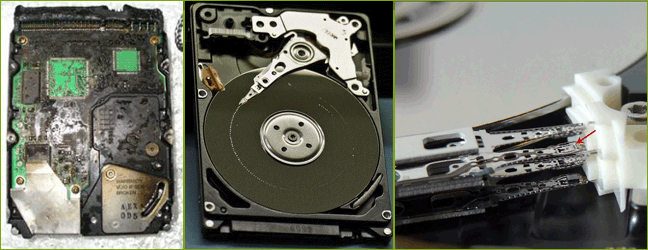
A mechanical failure can also be caused by a disaster such as a fire or a flood. A hard drive is quite sensitive, and intense heat or excessive exposure to humidity can seriously affect it. It regularly happens that companies specializing in data recovery receive hard drives that have been soaked or badly burned!
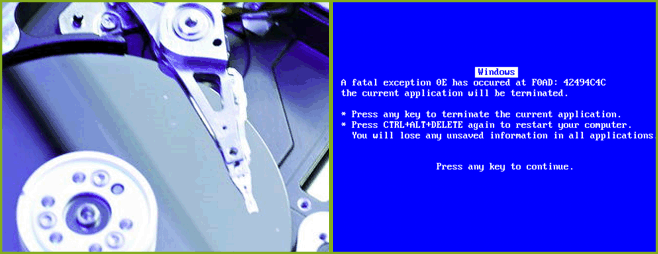
Logical Failures
Logical failures are more common than hardware failures. They are not caused by a physical failure of the hard drive or storage unit, but by a software-related issue. The most common example of data loss is the formatting of a partition or the accidental deletion of a file. For instance, two files may have been mixed up and the wrong one deleted…
What you need then is free data recovery software. We suggest Recuva or EaseUS. But be careful! You risk overwriting your lost files. You must absolutely install this software on a different partition than the one where the files you want to recover are located.
Data can also be lost during an attack by certain viruses that destroy the data stored on the hard drive. This is even more problematic if the virus is designed to prevent you from recovering your data by encrypting it for ransom.
Another case of logical failure occurs when the computer’s file system becomes inconsistent. The operating system is then no longer able to locate the data on the hard drive. It’s important to understand that an operating system (the main program on your computer) indexes all the files on the hard drive in a centralized location from which it can quickly find a requested file without having to search through the entire hard drive, which would take far too long. If this ” table of contents” becomes corrupted, the operating system no longer has any way to find the file. It’s a bit like wanting to quickly find a specific chapter in a book: you would check the book’s table of contents to find out which page that chapter is on. Without this table of contents, you would have to go through the entire book to find the chapter you’re looking for.
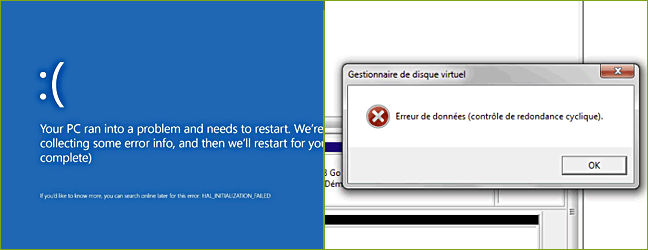
the BSOD blue screen (the infamous Blue Screen of Death) and the cyclic redundancy check error
Identifying the Problem
It’s important to be able to identify what type of problem you’re facing, in other words mechanical or logical, so that you can make the right decision about what can be done. If you already know what the problem is, for example if you deleted a file yourself, you can skip to the next section.
If you notice that your hard drive is making strange noises, an unusual clicking sound, or that it’s becoming slower and slower while making odd little scratching noises, you are probably dealing with a hardware failure. A hard drive in good working order should not make any sounds, or at least not strange or irregular ones. If you diagnose a mechanical failure, with your hard drive making abnormal noises, it is essential to stop touching anything! Do not try to restart your computer several times hoping the problem will go away on its own, as this could make the situation worse. If your hard drive contains data you absolutely want to keep and you are dealing with a mechanical failure, then unplug your devices and consult us.
Another symptom that can indicate a mechanical failure is when your computer’s BIOS fails to detect the hard drive. That said, this can also be due to a configuration issue, though this is fairly rare. The option of transferring the unreadable hard drive to another computer and trying to read it from there remains a possibility, but we do not recommend this approach if you suspect a mechanical problem.
If the problem does not appear to be caused by a physical malfunction of the hard drive, and if you are able to start the computer and run your usual programs, then your data loss is logical in nature.
Resolving a Software Failure
You’ve determined that you’re dealing with a software-related loss — what are the next steps to take?
Perform a Manual Search
Let’s first deal with a simple scenario: you’ve just deleted a file or folder and want to recover it. Have you checked the recycle bin to see if the file is there? On Windows, simply double-click the recycle bin icon on the desktop. If you only deleted the file in the usual way, it should normally be there.
Have you also checked whether there might be a “cached” version of the file you want to recover somewhere on your computer? Software such as Word or Open Office automatically creates a “cached” version of files being worked on and, if a problem such as a power outage occurs, they are able to retrieve the files. Usually, all you need to do is relaunch the application used, and the cached version of the last file used will open.
You can also manually browse through certain directories to see if you can find a hidden version of the file you’re looking for. To do this, it is recommended that you first configure your system to display all files, even those that are hidden by default.
Tip: show hidden files (Windows)
– On your desktop, double-click My Computer
– Go to the Tools/Folder Options menu
– Select the View tab
– Look for the Hidden files and folders section and select Show hidden files and folders
– Click Ok
Now look in the directory where the file you want to recover was located. Check whether there is a file hidden by default (a hidden file will appear paler than a regular file). If so, try opening the file using the application that was used to create the original file you lost. With a bit of luck, it will be a version of the lost file!
Here are some other directories you can browse through to find, perhaps, a cached version of the lost file:
– C:WINDOWSTemp
– C:Documents and SettingsUSERNAMEMy Documents (replace “USERNAME” with your username.
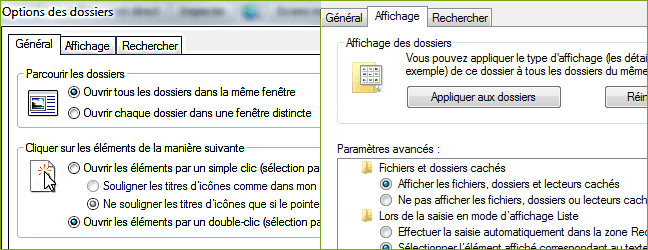
they now appear in light gray in your folder listings
Use Specialized Software
Several software programs have been created to help retrieve deleted or lost data. These programs can be extremely useful when the problem is software-related and it has not been possible to find the lost file through a manual search.
On our page about data recovery software, we present some of these programs and describe them. It’s useful to know how these programs work and to what extent they can help.
To summarize the process used by the vast majority of these programs, it involves bypassing the index created by the operating system and exploring the hard drive directly. This software is able to detect the presence of a file without going through the index. This means that even if the file has been removed from the index (accidentally or deliberately), the file’s data is still present on the hard drive and this software is able to find it.
You can now understand why it’s necessary to be careful about the actions you take as soon as data loss is detected. Indeed, since the operating system is no longer aware of the file’s existence, it can decide at any moment to write new data onto the hard drive at the location where the lost file used to be. Once new data has been written over the original data of the lost file, it will be impossible to recover that file, at least not entirely.
This is why, when you realize you’ve lost an important document, it’s essential to make sure that as little data as possible is written to or moved on the hard drive. It is therefore not recommended, for example, to install new software, create or download new files, or defragment the hard drive. Defragmenting the hard drive is one of the worst things you can do when dealing with data loss.
Tip: Linux to the Rescue
If you’re at all comfortable with Linux, a good way to deal with a software-related loss is to use a Linux distribution that can boot directly from a CD or DVD, without installing anything on the hard drive. Knoppix is particularly well suited for this.
Since it’s not advisable to install new software on the hard drive containing the lost data, such a distribution can prove very valuable. The key is to make sure the distribution includes data recovery software, or to install such software at the time of use.
If Linux isn’t an option for you, Ultimate Boot CD and UBCD4Win are DOS and Windows versions that can be booted directly from a CD.
Another option is software such as Data Advisor by Ontrack, which also boots directly from a CD and allows you to analyze the condition of your hard drive.
Tackling a Mechanical Failure
A mechanical failure is much harder, if not impossible, to fix on your own. Unless you are exceptionally well equipped for this task, it’s better to turn to a specialist. What can specialized companies in data recovery do? They have technology that allows them to extract data from a damaged hard drive. Among other things, they are able to open the hard drive in a cleanroom. A cleanroom is a room into which no dust can enter. It’s important to know that a hard drive is fragile and that even the smallest speck of dust can damage its internal system. In short, do not attempt to open your hard drive at home under any circumstances — this could damage it even further and make the specialists’ job more difficult afterward. Our services have a variable cost depending on the difficulty encountered in recovering the data, and on the condition of the hard drive. We offer a free quote with a results guarantee: no data recovered, no charge.
We are also able to recover data lost due to a software failure. It can therefore be a good idea to use their services if you’re unsure what type of failure you’re dealing with.
If you’re not very comfortable with computers, or if you absolutely must recover this lost data, the best approach is to close everything, stop touching anything, and call on our services. Of course, this solution comes at a cost, but it’s the one with the greatest chance of success.
Finally, we warn you against the temptation to rely on random solutions. A single inappropriate action and the deleted files could be lost forever!
We also advise against miracle remedies such as lightly tapping the hard drive or putting it in a freezer. Once again, a hard drive is a sophisticated and very fragile device. The slightest impact, the slightest excess of humidity or temperature change can damage it.
Whatever happens, don’t hesitate to contact us, we are available and ready to listen.
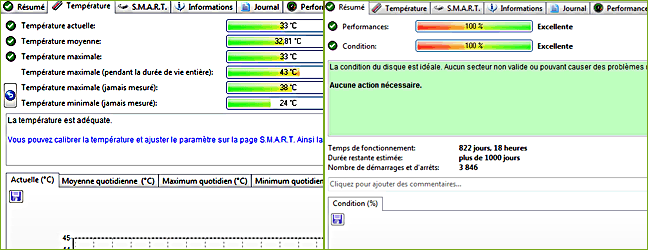
It warns you of SMART errors, excessively high temperatures, and
gives you an on-the-fly estimate of your hard drive’s lifespan.