
Because trouble rarely travels alone, as you well know ;-), and the saying that best applies to data loss is, we can confirm: “prevention is better than cure”… Here are a few tips to help you avoid ending up in a complicated situation.
Back up, back up, and back up again
In computing, no backup means no salvation! It’s the basics. Often, during training sessions, while trainee technicians are sitting at their computers working through a practical exercise, it’s a classic move for a mischievous instructor to cut the power at the moment least expected. A number of students are usually furious and wonder why the instructor would do such a thing. In reality, the brave instructor (risking more or less being lynched!) simply wanted to make their students understand the importance of regularly backing up data. The students who hadn’t saved their work watched it disappear, while the more prudent ones could calmly pick up right where they’d left off before the prank…
This anecdote is anything but trivial. We always underestimate the consequences of not having a backup plan in place to prevent data loss. For businesses, the consequences can be very serious, sometimes resulting in a complete halt of operations!
Regularly backing up your data is THE most important thing any computer owner can do. You never know when a problem will strike, and when it does, you’ll thank your lucky stars for having a backup copy on hand instead of having to go through data recovery.
What backup solutions can help you avoid data loss?
Backing up to the cloud
The available solutions for regularly backing up your important data have evolved considerably. In the past, we would have advised making a copy on CD/DVD, for example. Now, cloud storage solutions immediately come to mind. The most obvious ones are the solutions aimed at the general public, but there is also a whole range of storage services for businesses. One naturally thinks of the free 5 GB plan offered by OneDrive, available to every Windows user, which lets you access your documents throughout the day on a wide variety of devices.
We were also quite fond of Hubic’s cloud backup service, provided by Ovh. Unfortunately, this service was discontinued not long ago. Feel free to try an alternative service, starting at €2.00 per month: Swiss Backup by the company Infomaniak.
As for backup software, these tools let you set up automated, or even incremental, backups (where only the latest changes are included in the backup process, to reduce the disk space used), and sometimes even keep several versions of the same file.
In the update and security settings, under the backup section, you’ll still find a built-in Windows tool available on your computer by default, but only dedicated software such as Cobian Backup, an open-source option, or EaseUs, a freeware option, will let you go further and fine-tune your backups.

Hardware-based solutions
It’s always worth having manual backups stored on an external device, such as an external hard drive or a flash memory device, which you might also consider keeping in a location different from your main workplace, so you can still access your working tools under any circumstances, even in the event of a disaster such as a fire or flood…
Sorting through this backup can also be a good opportunity to separate what you actually use from what has become completely useless, or even dangerous, when security flaws exist in the applications.
As for physical solutions, RAID architectures remain a solid, reliable choice, providing data redundancy across multiple drives and thus offering an effective way to recover your data in many failure scenarios. It’s a very robust data backup system.
RAID architectures are also becoming increasingly common among home users, with the growing use of small home RAID servers such as Synology NAS devices, true benchmarks in their market, which handle files efficiently.
Using data recovery software
As we’ve already mentioned, particularly in this guide designed to help you see things more clearly: when a software-related loss occurs, it’s not advisable to install new software on the affected hard drive. Doing so could end up overwriting the very data you’re trying to recover.
A good habit is to install data recovery software before a problem ever occurs! Or to have this software installed on a different computer, then connect the drive “as a slave” or via USB, so you can scan it without any risk of accidental overwriting.
Partitioning your hard drive and backing up your important data on a partition separate from the primary partition is another good practice worth adopting, the goal, once again, being to reduce the amount of data being written that could overwrite the files you’re trying to recover. Reinstalling a system would also be simpler in the event of a larger-scale disaster.
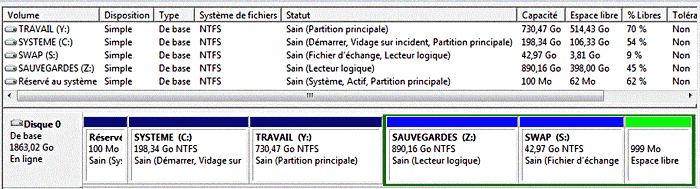
Using two separate hard drives can also be worthwhile. When using an SSD and a mechanical hard drive together, the OS and applications are typically installed on the SSD, while the data is stored on the physical drive.
Protecting your system
And of course, the best way to guard against data loss is to act ahead of time, particularly when it comes to security. With all the threats making headlines in recent years, burying your head in the sand and thinking “it only happens to others” is simply not an option…
Installing antivirus software is, unsurprisingly, an essential way to protect yourself against potential threats that could target your data. It’s also important to update your antivirus regularly so it can keep up with the very latest risks. Businesses will likely need to invest in a paid antivirus solution.
You also can’t skip a firewall, ideally configured properly.
A physical device that can also help prevent data loss is the UPS (Uninterruptible Power Supply) which will provide enough power in the event of a power outage for you to be able to save your data before shutting down the computer.
You can also use electrical protection systems that prevent power surge issues, which can sometimes be fatal to electronic components.
Finally, one last important point: to protect your computer, it’s essential to regularly update your operating system and applications (the well-known “Windows Updates” in Windows’ case). This precaution keeps the system as stable as possible, and keeps it resistant to exploits, so that cryptolockers, ransomware, and other such nasty surprises can’t take advantage…
One last tip for updating your system on Windows: we’ve really come to like the Chocolatey package manager, which lets you run updates on the fly for all your applications, just like on Unix systems.